
Case Fans
How to Choose PC Case Fans in Bahrain: 120mm vs 140mm, PWM, ARGB & Airflow Guide (2026)
Aug
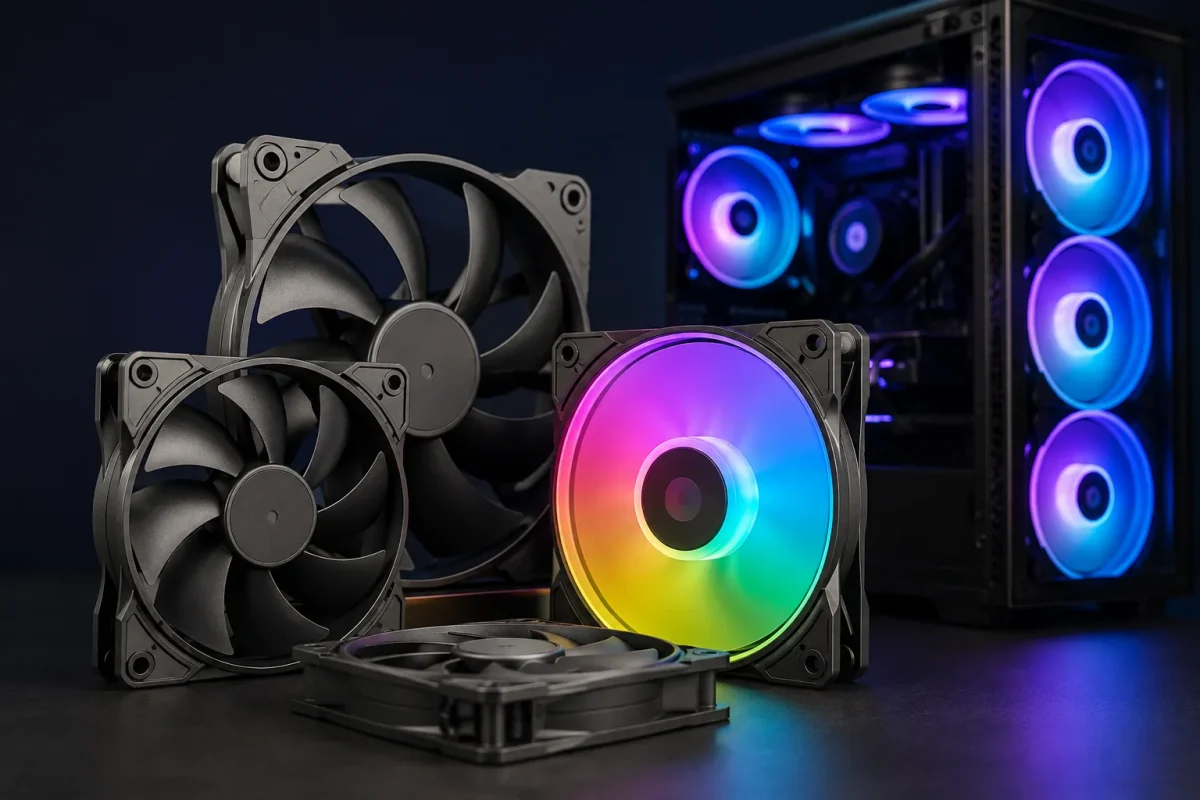
A case fan looks like one of the simpler parts of a gaming PC. Pick the right size, screw it into the case, connect the cable, and you are done. In reality, choosing PC case fans involves more than deciding which RGB effect looks best.
Fan size, airflow, static pressure, RPM range, noise level, connector type, blade direction, and placement can all affect how air moves through your gaming PC. A good setup does not necessarily have the most fans. It has the right fans working together in the right positions.
That matters even more when building a gaming PC in Bahrain, where keeping heat under control while limiting dust buildup can be an ongoing concern. Instead of filling every empty fan slot, it makes more sense to understand what each fan is supposed to do.
This guide explains how to choose PC case fans in Bahrain, including 120mm vs 140mm fans, PWM control, ARGB lighting, static pressure, intake and exhaust placement, reverse-blade designs, fan hubs, and the number of fans you actually need.
Why Case Fans Matter in a Gaming PC
Your CPU cooler and graphics card have their own cooling systems, but they still depend on the temperature of the air inside the case.
Case fans create a path for cooler room air to enter the chassis and warmer air to leave. Without a sensible airflow path, heat released by the CPU, GPU, motherboard, SSDs, and other components can remain inside the case longer than necessary.
This is why adding a powerful CPU cooler alone does not automatically fix poor case airflow. The cooler still needs access to relatively fresh air, and the heated air it produces needs somewhere to go.
Before choosing individual models, it is worth browsing the available PC case fans in Bahrain and comparing size, connector type, airflow specifications, lighting, and intended use.
120mm vs 140mm Case Fans: Which Size Is Better?
The two most common sizes in modern gaming PCs are 120mm and 140mm.
Neither size is automatically better for every build.
120mm Case Fans
120mm fans are extremely common because they fit a wide range of cases, CPU coolers, and radiators. They are also useful when a case provides several mounting positions but does not support larger fans in every location.
A typical mid-tower may support three 120mm fans across the front while supporting fewer 140mm fans in the same area.
120mm fans are a practical choice when:
- Your case mainly supports 120mm mounting positions
- You are installing fans on a 120mm, 240mm, or 360mm radiator
- You want broad compatibility
- You need several fans in a limited mounting area
- You are replacing existing 120mm fans
140mm Case Fans
A 140mm fan has a larger blade area. Depending on the specific design, a larger fan can move a useful amount of air while spinning more slowly than a smaller fan performing a similar job.
That can make 140mm fans attractive for people who want strong case airflow without unnecessarily high fan speeds.
Consider 140mm fans when:
- Your case officially supports them
- You want fewer, larger intake fans
- Low-noise airflow is important
- You are using a 280mm or 420mm radiator
- Your case has enough clearance around the mounting position
Do not buy a 140mm fan simply because it is larger. Check your PC case specifications first. Mounting-hole spacing and available clearance determine what will actually fit.
Airflow vs Static Pressure: Understand the Difference
Two specifications appear frequently on PC fan product pages: airflow and static pressure.
They describe different parts of fan performance.
What Is CFM?
Airflow is commonly expressed in CFM, or cubic feet per minute. It gives you an idea of how much air a fan can move under its specified test conditions.
For relatively open case positions, such as an unobstructed rear exhaust, strong airflow can be useful.
Higher CFM is not automatically better, however. Fan speed, noise, blade design, restrictions, and the way the case is built all affect real-world results.
What Is Static Pressure?
Static pressure describes a fan’s ability to push or pull air through resistance.
Resistance can come from:
- Radiators
- Dense dust filters
- Fine mesh
- Heatsinks
- Restricted front panels
This is why radiator fans are often designed with static pressure in mind. The fan has to move air through tightly packed radiator fins rather than simply move air through an open space.
For a normal case build, you do not need to obsess over choosing a pure “airflow” or pure “pressure” fan for every slot. Modern fan designs often try to balance both. Just pay closer attention to static pressure when the fan will sit directly against a restrictive filter, mesh panel, or radiator.
PWM vs 3-Pin Fans: What Should You Buy?
This is one of the most useful specifications to understand before buying a case fan.
3-Pin DC Fans
Traditional 3-pin PC fans use three connections for power, ground, and RPM monitoring. Compatible motherboards can control their speed by adjusting voltage.
They can be perfectly suitable for basic builds, especially when you do not need a wide or highly refined fan-speed range.
4-Pin PWM Fans
A 4-pin PWM fan adds a dedicated control signal.
PWM stands for Pulse Width Modulation. Instead of relying only on voltage changes, the motherboard can use the PWM signal to control fan speed.
For gaming PCs, PWM fans are usually convenient because you can create a fan curve that keeps the system quiet during light use and increases fan speed as temperatures rise.
For example, browsing or watching videos may not require much airflow. Once you start a demanding game and the CPU or GPU heats up, the fans can automatically spin faster.
Can a 3-Pin Fan Connect to a 4-Pin Header?
In many standard PC configurations, yes. The connector is designed so a 3-pin fan can physically connect to a compatible 4-pin motherboard fan header.
Speed-control behavior depends on the motherboard and its BIOS settings. Some boards allow the header to switch between DC and PWM control modes.
Always check the motherboard manual instead of assuming every header behaves the same way.
ARGB vs RGB Case Fans
Lighting does not determine cooling performance, but it can affect compatibility and cable management.
RGB Fans
Traditional RGB lighting commonly uses a 12V 4-pin lighting connection. LEDs connected to the same control channel typically display the same selected color at a given moment.
ARGB Fans
ARGB stands for Addressable RGB.
ARGB commonly uses a 5V 3-pin lighting connection and allows individual LEDs or groups of LEDs to be controlled, which enables effects such as moving gradients, waves, and multiple colors.
The important point is compatibility.
A 5V ARGB connection and a 12V RGB connection are not interchangeable. Never force one connector into the other type of header.
Also remember that the lighting cable and the fan-motor cable are usually separate functions. A fan may use a 4-pin PWM connection for speed control and a separate 3-pin 5V connection for ARGB lighting.
What Are Reverse-Blade Case Fans?
Reverse-blade fans have become popular in gaming PCs with glass side panels and highly visible fan layouts.
A normal fan has a visually cleaner “front” side and a rear side where the support struts are visible. Depending on how the fan is mounted, an intake fan may show the side that some builders consider less attractive.
A reverse-blade fan changes the blade orientation so airflow moves in the opposite direction while allowing the more decorative side of the fan to remain visible.
This is especially useful for:
- Bottom intake fans
- Side intake fans
- Dual-chamber cases
- Showcase builds
- Glass-panel gaming PCs
A reverse-blade fan is not automatically an exhaust fan or an intake fan just because of its appearance. Always confirm the actual airflow direction before installation.
Intake vs Exhaust: Which Way Should Case Fans Face?
Every case fan should have a job.
An intake fan brings cooler outside air into the PC.
An exhaust fan removes warmer air from the case.
A common airflow layout is:
Front or bottom: Intake
Rear or top: Exhaust
This arrangement works well with the natural layout of many modern PC cases, but it is not a rule that applies blindly to every chassis.
For example, dual-chamber cases may use side and bottom intakes instead of front intake fans. Compact cases can also use layouts that look unusual compared with a traditional ATX tower.
The goal is to create a clear airflow path instead of making multiple fans fight each other.
Positive, Neutral, and Negative Air Pressure
Once you start planning several fans, you will hear terms such as positive pressure and negative pressure.
Positive Air Pressure
Positive pressure generally means the system brings in slightly more air than it exhausts.
When the intake air is passing through dust filters, this can help reduce the amount of unfiltered air entering through small openings around the case.
For Bahrain PC builds where dust can be a concern, a slightly intake-focused layout can be useful.
Negative Air Pressure
Negative pressure means the exhaust side is moving more air than the intake side.
This can remove warm air effectively, but it may also encourage air to enter through gaps that do not have dust filters.
Neutral Pressure
Neutral pressure is the idea of keeping intake and exhaust reasonably balanced.
In real PCs, pressure is more complicated than simply counting fans. A 140mm fan running quickly does not move exactly the same amount of air as a slower 120mm fan, and filters or restrictive panels can significantly affect airflow.
Think about actual airflow, not just fan quantity.
How Many Case Fans Does a Gaming PC Need?
There is no universal number.
A low-power gaming system in a well-ventilated case may need fewer fans than a high-end PC with a powerful graphics card and CPU.
For many conventional gaming builds, a sensible starting point is:
- Two front intake fans
- One rear exhaust fan
That gives the case a basic front-to-back airflow path.
Higher-power systems may benefit from additional top exhaust, bottom intake, or side intake fans depending on the case design.
Do not assume that filling every available fan slot will automatically produce better temperatures.
Once a case already has a strong airflow path, extra fans can produce diminishing practical benefits while adding cost, cables, and potentially more noise.
Start with a sensible layout, monitor temperatures, and add cooling where there is a real reason to do so.
Where Should You Place Case Fans?
Fan placement matters just as much as fan count.
Front Fans
Front-mounted fans are commonly used as intake fans. They bring cooler air toward the GPU, motherboard, and CPU area.
If your case uses a heavily restricted front panel, fan selection becomes more important because the fans must pull air through that resistance.
Rear Fan
The rear position is commonly used for exhaust. It gives warm air around the CPU area a direct route out of the chassis.
Top Fans
Top-mounted fans are often used as exhaust, particularly when a radiator is installed at the top.
However, you do not always need to fill every top slot. The correct layout depends on the case, CPU cooler, radiator position, and overall airflow direction.
Bottom Fans
Bottom intake fans can be particularly useful in modern dual-chamber or showcase cases because they can direct fresh air toward the graphics card.
Make sure there is enough clearance beneath the case for the fans to breathe, and keep bottom dust filters clean.
Side Fans
Side-mounted fans are common in panoramic glass cases. They are often configured as intake, bringing fresh air directly into the main chamber.
Reverse-blade fans are popular here because they can provide intake airflow while keeping the visually cleaner side facing the glass.
How to Choose a Quiet PC Case Fan
Noise is not determined by RPM alone.
Two fans spinning at the same RPM can sound different because of blade design, motor noise, bearing type, vibration, turbulence, and the resistance created by the case.
When comparing fans, look at:
- Maximum RPM
- Rated noise level in dBA
- Airflow
- Static pressure
- Bearing type
- PWM support
- Anti-vibration features
Do not automatically run every fan at 100 percent speed.
A properly configured PWM fan curve can make a large difference to day-to-day noise. Your PC does not need maximum case airflow while sitting on the desktop or performing light tasks.
The goal is not to make your fans silent at all times. It is to use enough airflow for the current workload without creating unnecessary noise.
Why Fan Curves Matter
A fan curve tells the motherboard how fast a fan should run at different temperatures.
For example, you might configure case fans to run slowly when the system is cool, increase gradually during normal gaming, and ramp higher only when temperatures become demanding.
Avoid extremely aggressive curves that constantly jump between low and high RPM. Frequent sudden speed changes can be more distracting than a fan maintaining a slightly higher but steady speed.
A smoother fan curve often sounds more natural.
When adjusting your setup:
- Start with the motherboard’s default or standard profile.
- Monitor CPU and GPU temperatures during actual games.
- Listen for unnecessary fan ramping.
- Adjust the curve gradually.
- Retest under the same workload.
Cooling should be tuned around real use, not simply around the highest possible RPM.
When Do You Need a Fan Hub?
Motherboards have a limited number of fan headers.
A basic PC with three case fans may have enough headers available. A build with six, seven, or nine fans can quickly run out.
That is where a fan hub becomes useful.
A hub allows several fans to connect through one central device, simplifying power distribution and cable management. Some hubs handle PWM fan control, ARGB lighting, or both.
For larger builds, a product such as the 1-to-9 PWM & ARGB Fan Hub Splitter can be useful when several compatible fans need to be organized through a central connection.
Before buying a hub, check:
- How many fans it supports
- Whether it supports PWM control
- Whether lighting support is 5V ARGB or 12V RGB
- How the hub receives power
- Which motherboard header controls fan speed
- Whether the connected fans need to share the same speed signal
Do not connect more fans to a motherboard header than the board manufacturer allows. Use a properly powered hub when the setup requires it.
Should You Buy RGB or Non-RGB Case Fans?
Cooling performance and lighting are separate decisions.
If you want a clean black gaming PC without lighting, there is no reason to pay for RGB purely because it is popular.
Non-RGB fans can also simplify cable management because you do not need separate lighting connections or controllers.
A straightforward option is a cooling-focused product such as the High-Performance Non-RGB PC Cooling Fans, which are offered in 120mm and 140mm variants depending on the selected option.
ARGB makes more sense when the visual design of the PC matters to you, and you want lighting that matches RAM, an AIO cooler, motherboard lighting, or other components.
Choose lighting because you want it, not because you think RGB makes a fan cool better.
Common Mistakes When Buying PC Case Fans
Buying Fans Before Checking Case Compatibility
Always confirm supported fan sizes and mounting positions first.
Looking Only at Maximum RPM
Higher RPM may increase potential cooling performance, but it can also increase noise. RPM tells only part of the story.
Ignoring Static Pressure
A fan that works well in an open exhaust position may not be ideal behind a restrictive radiator or filter.
Mixing Up ARGB and RGB Headers
5V ARGB and 12V RGB are different standards. Check both the fan and motherboard before connecting lighting.
Installing Every Fan in the Same Direction
A case needs both a source of incoming air and a path for hot air to escape.
Buying Too Many Fans
More is not always better. A few well-positioned fans can outperform a larger number arranged poorly.
Ignoring Fan Curves
Good hardware running on a bad fan curve can still produce unnecessary noise.
Forgetting About Dust Filters
A high-airflow intake fan cannot work efficiently forever if its filter becomes heavily clogged.
A Practical Fan Setup for a Typical Gaming PC
For a conventional mid-tower gaming PC, you can start with a simple setup:
Basic Setup
- 2 front intake fans
- 1 rear exhaust fan
This is suitable as a starting point for many mainstream systems.
Higher-Power Gaming Setup
- 2 or 3 front intake fans
- 1 rear exhaust fan
- 1 or 2 top exhaust fans
This gives a high-performance CPU and GPU more airflow while maintaining a clear path through the case.
Panoramic or Dual-Chamber Setup
- Bottom intake
- Side intake
- Rear exhaust
- Top exhaust
This type of layout is where reverse-blade ARGB fans can be particularly useful for maintaining the desired visual appearance.
These are starting points rather than strict formulas. Always consider the case manual, hardware temperatures, GPU orientation, radiator location, and dust-filter layout.
Choosing PC Case Fans for Bahrain
For a gaming PC in Bahrain, the best case-fan setup is usually one that balances cooling, dust control, and noise rather than chasing the highest possible airflow number.
Prioritize:
- A clear intake-to-exhaust airflow path
- Filtered intake positions where possible
- Easy-to-clean dust filters
- PWM control for flexible fan speeds
- Suitable static pressure for restrictive panels or radiators
- Enough airflow for the CPU and GPU
- Sensible fan curves
- Clean cable management
- Compatibility with your motherboard headers and case
It is also worth checking filters more frequently if the PC sits close to the floor, near an open window, or in an area where dust builds up quickly.
A powerful fan cannot compensate forever for a blocked intake.
Final Thoughts
Choosing PC case fans becomes much easier once you stop looking at them as decorative accessories and start thinking about the job each fan needs to perform.
120mm fans give you excellent compatibility. 140mm fans can be a strong option when your case has enough room. PWM gives you better control over cooling and noise. ARGB changes how the build looks, not how cooling fundamentally works. Reverse-blade fans solve aesthetic challenges in intake positions, while static-pressure-focused fans are useful when airflow has to pass through resistance.
Most importantly, plan the complete airflow path.
Decide where fresh air will enter, where warm air will leave, and how the fans will respond as your gaming PC heats up. Three well-chosen, well-positioned fans can make more sense than filling every mounting position without a plan.
For PC builders in Bahrain, a balanced setup with filtered intake airflow, sensible fan control, and regular cleaning can give you a gaming PC that stays cooler without turning your room into a wind tunnel.
Frequently Asked Questions
1. Are 120mm or 140mm fans better for a gaming PC?
Neither size is always better. 120mm fans provide wider case and radiator compatibility, while 140mm fans have a larger blade area and can be attractive when you want strong airflow at relatively lower fan speeds. Check which sizes your case supports before choosing.
2. How many case fans should a gaming PC have?
There is no fixed number for every PC. A common starting point for a traditional gaming tower is two intake fans and one exhaust fan. More powerful hardware or different case layouts may benefit from additional airflow.
3. Is three case fans enough for gaming?
Three case fans can be enough for many gaming PCs when they are positioned correctly. Two intake fans at the front and one rear exhaust create a straightforward airflow path. High-end hardware may require a more extensive cooling setup depending on the case and component temperatures.
4. Should PC case fans be intake or exhaust?
A gaming PC normally needs both. Intake fans bring cooler air into the case, while exhaust fans remove heated air. Front, side, and bottom positions are often used for intake, while rear and top positions are commonly used for exhaust.
5. What does PWM mean on a PC fan?
PWM stands for Pulse Width Modulation. A 4-pin PWM fan receives a control signal that allows a compatible motherboard or controller to adjust its speed automatically. This makes it easier to balance low noise during light use with stronger cooling during gaming.
6. Can you plug a 3-pin fan into a 4-pin motherboard header?
In many standard PC configurations, yes. A 3-pin fan can connect to a compatible 4-pin header, but speed control may depend on whether the motherboard supports DC or voltage control on that header. Check the motherboard manual and BIOS fan settings.
7. Is ARGB better than RGB for PC fans?
ARGB gives you more lighting control because individual LEDs can be addressed, while conventional RGB lighting generally controls a group of LEDs together. ARGB commonly uses a 5V 3-pin connection, while traditional RGB commonly uses a 12V 4-pin connection. They should not be connected to the wrong header.
8. Is positive air pressure good for a gaming PC?
Slight positive pressure can be useful, especially when intake air passes through dust filters. It can reduce the amount of unfiltered air being pulled through gaps in the case. Actual pressure depends on fan airflow, speed, filters, and case restrictions, not simply the number of intake and exhaust fans.
9. What is the difference between a normal and reverse PC fan?
A reverse-blade fan changes the blade orientation so airflow travels in the opposite direction while the more decorative side can remain visible. These fans are popular for side and bottom intake positions in glass-panel or panoramic gaming cases.
10. Do more case fans always improve cooling?
No. Once a case has an effective airflow path, adding more fans can produce smaller benefits. Placement, case restrictions, fan quality, speed, and direction matter just as much as quantity. It is better to monitor temperatures and add fans where they solve a specific cooling problem.