
PC Repair
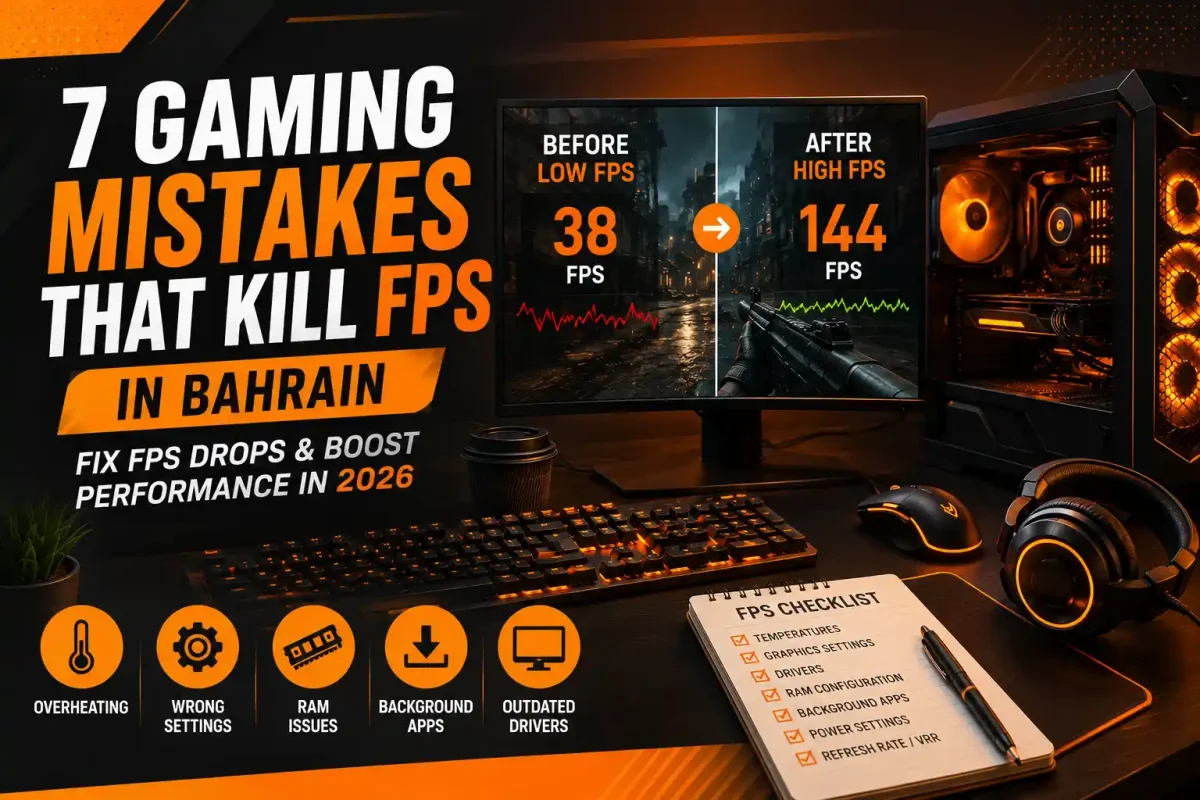
7 Gaming Mistakes That Kill FPS — And How to Fix Them (Bahrain Gamer’s Guide)
Aug
Low FPS does not always mean your gaming PC needs a new graphics card.
A system that normally performs well can suddenly develop frame drops, stuttering or inconsistent performance because of overheating, incorrect graphics settings, memory configuration, background activity, drivers or a bottleneck elsewhere in the system.
For gamers in Bahrain, temperature and airflow deserve particular attention. A PC that performs normally for the first 10 minutes but slows down during a longer session may be dealing with a completely different problem from a PC that struggles from the moment a game launches.
Before spending money on an upgrade, identify what is actually limiting the game.
This guide explains seven common mistakes that can hurt gaming performance and, more importantly, how to diagnose them properly.
Quick Diagnosis: What Is Causing Your FPS Drops?
Before changing ten different settings, reproduce the problem in the same game and watch what happens.
| What You Notice | Possible Cause |
| GPU stays near full utilisation | GPU or graphics settings may be the limit |
| GPU utilisation is low but CPU is heavily loaded | CPU or game-engine bottleneck may be involved |
| FPS drops after gaming for a while | Check CPU/GPU temperatures and clock speeds |
| Stuttering while RAM usage is very high | Memory pressure may be contributing |
| One game performs badly after an update | Game patch or driver issue may be involved |
| FPS is good but gameplay feels uneven | Check frame times, VRR and frame-rate limits |
| Performance is lower only on a laptop | Power, thermal or GPU-selection settings may be involved |
The important point is that FPS drops are a symptom, not a diagnosis.
Fix the actual bottleneck rather than applying every optimisation you find online.
Mistake 1: Trying Random FPS Tweaks Before Finding the Bottleneck
One of the biggest mistakes gamers make is changing Windows settings, installing optimisation software or buying hardware before checking which component is actually limiting performance.
A gaming PC can be limited by:
- Graphics card
- Processor
- RAM
- Cooling
- Game settings
- Software
- Drivers
- A specific game engine
How to Check Whether You Are GPU-Limited
If your GPU is consistently working close to its maximum utilisation while gaming, reducing GPU-heavy settings may improve performance.
Start with settings such as:
- Resolution
- Ray tracing
- Shadows
- Reflections
- Volumetric effects
- Anti-aliasing
- Render scale
If performance improves significantly when these settings are reduced, the graphics workload was probably an important part of the limitation.
How to Check Whether You Are CPU-Limited
A CPU bottleneck can appear when the GPU is capable of producing more frames but the processor cannot prepare them quickly enough.
This is more common in:
- Competitive games targeting very high FPS
- CPU-heavy simulation games
- Large multiplayer environments
- Older processors paired with powerful GPUs
Do not judge a CPU bottleneck only from total CPU utilisation. Some games can become limited by one or a few heavily loaded threads even when overall utilisation does not show 100%.
Upgrade Only After You Identify the Limitation
If testing shows that your GPU is genuinely the limiting component and reducing graphics quality no longer gives you the performance you need, then an upgrade may make sense.
At that point, compare gaming graphics cards available in Bahrain based on your target resolution and frame rate instead of simply buying the most expensive GPU.
Mistake 2: Using Ultra Settings Because Your PC Can Launch Them
Being able to select Ultra does not mean Ultra is the best setting for your system.
Many modern games include settings that produce a relatively small visual improvement while adding substantial GPU load.
Settings to Reduce First
If you need more performance, test these individually:
- Ray tracing
- Shadow quality
- Volumetric lighting
- Reflections
- Ambient occlusion
- Crowd density
- View distance
- Render resolution
Do not immediately reduce everything to Low.
Change one or two settings, test the same game area again and see whether performance improves.
1080p, 1440p and 4K Matter
Resolution has a major effect on the amount of work your GPU must perform.
A system that produces excellent performance at 1080p may deliver substantially lower FPS at 1440p or 4K.
Instead of asking:
“Can my GPU run this game?”
Ask:
“Can my GPU run this game at my target resolution, settings and frame rate?”
Use Upscaling When It Makes Sense
Modern games may support technologies such as DLSS, FSR or XeSS.
Upscaling can reduce the internal rendering workload while producing an image close to the target output resolution, although the visual result and performance gain depend on the game and selected quality mode.
Use Quality or Balanced modes first rather than automatically choosing the most aggressive performance setting.
Mistake 3: Ignoring Heat and Airflow During Long Gaming Sessions
This is especially relevant for gaming PCs and laptops used in Bahrain.
When a processor reaches its thermal limits, its protection mechanisms can reduce operating frequency and power. Intel describes throttling as reducing clock speed when the processor reaches its thermal limit, while AMD similarly notes the relationship between temperature, power and achievable processor performance.
That means a PC can perform normally at the beginning of a gaming session but slow down later as temperatures increase.
Signs of a Thermal Problem
Watch for:
- FPS starting high and gradually dropping
- Fans becoming extremely loud
- CPU or GPU clocks dropping as temperatures rise
- Stuttering appearing after longer sessions
- Performance improving after the system cools down
How to Improve Cooling
Start with the basics:
- Clean dust from case filters and fans
- Make sure intake and exhaust fans are working
- Avoid blocking laptop vents
- Leave enough space around the PC for airflow
- Check that the CPU cooler is properly mounted
- Inspect thermal paste if the cooler has been installed for a long time
- Keep the gaming area reasonably ventilated
Do not immediately assume that buying a large liquid cooler will solve the problem.
First confirm that temperature is actually causing clocks or performance to fall.
If your existing cooling solution is inadequate for the processor or case, compare suitable CPU cooling options available in Bahrain based on CPU compatibility, case clearance and thermal requirements.
Mistake 4: Ignoring RAM Configuration
RAM can affect gaming differently depending on the game, processor and system configuration.
The issue is not simply “more RAM equals more FPS.”
Three things matter:
- Capacity
- Memory configuration
- Memory speed and timings
Check Whether You Have Enough RAM
If your system runs out of available physical memory while gaming, Windows may need to rely more heavily on storage-backed virtual memory.
That can contribute to inconsistent responsiveness and stuttering.
Close genuinely unnecessary memory-heavy applications if RAM usage is already close to the system’s available capacity.
Check Whether Your Memory Profile Is Enabled
Compatible gaming memory may support Intel XMP or AMD EXPO profiles.
Intel describes XMP as a way to run compatible DDR4 or DDR5 memory at validated overclocked profiles, while AMD provides EXPO profiles for compatible AM5 memory configurations.
A common situation is buying fast RAM but leaving it at a lower default memory setting.
Do not enable an overclocking profile blindly. Confirm that your CPU, motherboard and memory support the profile, and test system stability after making the change.
Check Your Memory Channel Configuration
On platforms designed for dual-channel memory, using an appropriate matched configuration can provide more memory bandwidth than an equivalent single-module setup.
The actual performance difference varies by game and platform, so treat this as part of system configuration rather than a guaranteed FPS number.
If your diagnosis shows that memory capacity or configuration is genuinely limiting the system, compare compatible desktop gaming RAM in Bahrain instead of upgrading only because a game is stuttering.
Mistake 5: Ignoring GPU Drivers and Game Updates
Drivers are not magic FPS boosters, but they matter.
New GPU drivers frequently include support for newly released games, bug fixes and game-specific optimisations.
NVIDIA states that its Game Ready Drivers are developed and tested for gaming performance, reliability and new-game support. AMD’s driver releases similarly include new-game support and fixes for crashes, rendering problems and lower-than-expected performance in specific titles.
What to Do
If a game suddenly performs worse:
- Check whether the game recently updated.
- Check your GPU driver version.
- Read the latest driver release notes.
- Update when the release addresses your game or relevant issue.
- Restart the PC after installation.
- Retest the exact same game scenario.
Do not assume the newest driver will fix every problem.
Occasionally a driver or game update can introduce new issues, which is why release notes and repeatable testing matter.
Laptop Users Should Be More Careful
For some laptops, AMD recommends using OEM-provided drivers because they may include system-specific customisation and validation.
If a generic driver causes problems on a laptop, check the laptop manufacturer’s support page.
Mistake 6: Letting Background Tasks, Recording and Power Settings Interfere
Closing every background process on your computer is unnecessary.
A lightly loaded Discord or browser window will not automatically destroy gaming performance on a well-equipped PC.
The problem appears when a background task is actually competing for resources your game needs.
Examples can include:
- Large downloads
- Cloud synchronisation
- Video encoding
- Game recording
- Browser tabs consuming large amounts of memory
- Antivirus scans
- Multiple launchers updating simultaneously
- Unnecessary overlays
- RGB or monitoring utilities behaving incorrectly
Use Task Manager Instead of Guessing
If stuttering occurs, check:
- CPU usage
- Memory usage
- Disk activity
- GPU usage
Look for a process that spikes at the same time as the problem.
Close or pause the actual offender rather than disabling random Windows services.
Enable Windows Gaming Features Appropriately
Microsoft’s Gaming settings include Game Mode, which is designed to optimise system behaviour during gaming sessions. Windows 11 also includes optimisations for compatible windowed games that can reduce frame latency and enable features such as VRR.
Use supported Windows features before installing questionable third-party “FPS booster” software.
Laptop Performance Modes Matter
Gaming laptops can behave very differently when:
- Running on battery
- Plugged into power
- Using Quiet mode
- Using Balanced mode
- Using the manufacturer’s Performance/Turbo mode
For demanding gaming, use the laptop manufacturer’s intended gaming-performance profile when appropriate and keep the laptop connected to the correct power adapter.
Do not disable thermal or power protections.
They exist to protect the hardware.
Mistake 7: Ignoring Refresh Rate, VRR and Frame-Time Consistency
High FPS is useful, but the average FPS number does not tell the complete story.
A game averaging 120 FPS with frequent large frame-time spikes may feel less smooth than a consistently delivered lower frame rate.
This is why you should pay attention to:
- Frame-time consistency
- Minimum performance
- Refresh rate
- VRR
- V-Sync
- Frame-rate caps
Check Your Windows Refresh Rate
Buying a 165Hz, 240Hz or 360Hz monitor does not help if Windows is still configured to run it at a lower refresh rate.
Windows provides a display setting for selecting supported refresh rates.
Verify:
Settings → System → Display → Advanced display
and confirm that the intended refresh rate is selected.
Understand VRR
Variable Refresh Rate technologies allow a compatible display to adjust its refresh timing to the GPU’s frame delivery.
NVIDIA describes G-SYNC as matching monitor refresh rate to GPU frame rate to reduce tearing and minimise stutter.
AMD FreeSync and HDMI VRR serve similar adaptive-refresh goals on compatible hardware.
Do Not Automatically Run Unlimited FPS
An unlimited frame rate is not always necessary.
In some setups, a sensible frame-rate cap can:
- Reduce GPU load
- Reduce heat
- Improve consistency
- Keep performance within a monitor’s VRR range
The correct configuration depends on your monitor, GPU, game and whether technologies such as Reflex, G-SYNC, FreeSync or V-Sync are being used.
Avoid copying one universal V-Sync or FPS-cap configuration from the internet and applying it to every gaming setup.
Does Installing a Game on an SSD Increase FPS?
Usually, an SSD should not be described as a direct average-FPS upgrade.
Its strongest benefits are generally:
- Faster game loading
- Faster level loading
- Faster asset access
- Reduced delays when games need to stream data from storage
In some games, slow or overloaded storage can contribute to asset-streaming stutter, but moving from an HDD to an SSD should not be presented as a guaranteed large FPS increase.
If your average FPS is low because the GPU is fully loaded, replacing the storage drive will not solve the GPU bottleneck.
This distinction is important because an upgrade should target the actual problem.
A 5-Minute FPS Troubleshooting Checklist
Before buying anything, work through this order.
Step 1: Make the Problem Repeatable
Use the same game, same map or scene, same graphics settings and similar conditions.
Random testing makes comparisons unreliable.
Step 2: Check FPS and Frame Time
Do not watch only average FPS.
Look for sudden spikes or drops that match the stutter you feel.
Step 3: Check GPU Usage
If the GPU is consistently the limiting component, test lower resolution or graphics settings.
Step 4: Check CPU Behaviour
Look for heavily loaded CPU threads and whether GPU utilisation is unexpectedly low.
Step 5: Check Temperatures and Clock Speeds
If temperature rises while clock speed and performance fall, investigate cooling.
Step 6: Check RAM Usage and Configuration
Confirm:
- Available memory
- Correct DIMM placement
- XMP/EXPO configuration where supported
- No application is consuming excessive RAM
Step 7: Check Drivers and Game Updates
Look for known performance issues before changing hardware.
Step 8: Check Background Activity
Pause downloads, recording or other genuinely heavy tasks.
Step 9: Check Display Settings
Verify:
- Correct refresh rate
- VRR configuration
- Appropriate FPS cap
- Correct GPU is being used on multi-GPU laptops
Step 10: Change One Thing at a Time
Retest after each meaningful change.
If you change ten settings together, you will not know which one fixed or worsened the problem.
When Is It Actually Time to Upgrade Your Gaming PC?
Optimisation cannot overcome hardware limits forever.
An upgrade becomes reasonable when:
- Your GPU is consistently fully utilised at your desired settings
- Your CPU cannot deliver the frame rate you want
- You do not have enough RAM for your games and normal background workload
- The system cannot meet your target resolution even after sensible settings optimisation
- Your hardware does not support features required by the games you play
- Replacing one component produces a clear and measurable benefit
The goal should not be to chase the highest possible benchmark number.
Choose a target based on your actual monitor and games.
For example:
Competitive FPS: prioritise stable high frame rates and low latency.
AAA gaming: balance image quality and smooth performance.
1440p gaming: match GPU capability with your preferred graphics settings.
4K gaming: expect significantly greater GPU demand.
A balanced gaming PC is usually better than one extremely powerful component surrounded by bottlenecks.
Final Thoughts: Fix the Cause, Not Just the FPS Number
Low FPS is not a diagnosis.
The most effective way to improve gaming performance is to identify what changes at the moment performance drops.
Start by checking:
- GPU utilisation
- CPU behaviour
- Temperatures
- RAM
- Drivers
- Background activity
- Display and VRR settings
Then change one variable at a time.
For Bahrain gamers, cooling and airflow deserve additional attention because long gaming sessions can expose thermal problems that are not obvious when the PC is first turned on.
But do not blame Bahrain’s climate, Windows, your GPU or your RAM without measuring the system first.
Sometimes the correct solution is a settings change.
Sometimes it is cleaning the PC.
Sometimes it is fixing memory configuration.
And sometimes the hardware genuinely needs an upgrade.
Good troubleshooting tells you which one applies before you spend money.
Frequently Asked Questions About Low FPS and FPS Drops
1. Why is my FPS suddenly dropping even though I have a good PC?
Sudden FPS drops can be caused by thermal throttling, a game or driver update, background activity, CPU limitations, memory pressure or changing graphics workloads. Monitor the system while reproducing the problem instead of assuming the GPU is faulty.
2. Why does my FPS drop after 20 or 30 minutes of gaming?
A problem that appears only after the system has been under load for a while can indicate increasing temperatures or another resource-related issue. Check CPU/GPU temperature, clock speeds and utilisation when the FPS drop begins.
3. Can high CPU temperature cause FPS drops?
Yes. Modern processors use thermal-control mechanisms that can reduce frequency or power when thermal limits are reached, which can reduce performance.
4. Does RAM increase FPS?
RAM can affect gaming performance, particularly when capacity, bandwidth or configuration is limiting the system. However, adding more RAM will not automatically increase FPS if you already have enough properly configured memory.
5. Should I enable XMP or EXPO for gaming?
If your CPU, motherboard and RAM officially support the appropriate profile, enabling XMP or EXPO can allow compatible memory to operate at its intended overclocked profile. Because these are overclocking technologies, test system stability after enabling them.
6. Does an SSD increase gaming FPS?
Usually not by a large amount in average FPS. SSDs primarily improve loading and data access. They may reduce storage-related streaming problems in some games, but they will not fix a GPU or CPU bottleneck.
7. Can outdated GPU drivers cause FPS drops?
They can contribute to problems in specific games. GPU manufacturers release game support, optimisations and fixes through driver updates, so checking the appropriate official driver release notes is worthwhile when a game behaves unexpectedly.
8. Does Windows Game Mode improve FPS?
The effect varies by system and workload. Microsoft’s Game Mode is designed to optimise system resources for gaming, but it should not be treated as a guaranteed large FPS increase.
9. Why is my 144Hz or 240Hz monitor running at 60Hz?
The monitor may be configured to a lower refresh rate in Windows, or the cable, port, resolution or monitor mode may not support the desired combination. Check Windows Advanced Display settings first.
10. Should I upgrade my GPU if I have low FPS?
Only if testing shows that the GPU is actually the limiting component at the resolution and settings you want to use. If the cause is CPU performance, overheating, memory pressure or software, a GPU upgrade may provide little benefit.